apple etiketine sahip kayıtlar gösteriliyor. Tüm kayıtları göster

12 Nisan 2016 Salı

If you forgot the passcode for your iPhone, iPad, or iPod touch, or your device is disabled

If you forgot the passcode for your iPhone, iPad, or iPod touch, or your device is disabled

Follow these steps if you've forgotten your passcode, or if a message says that your device is disabled.
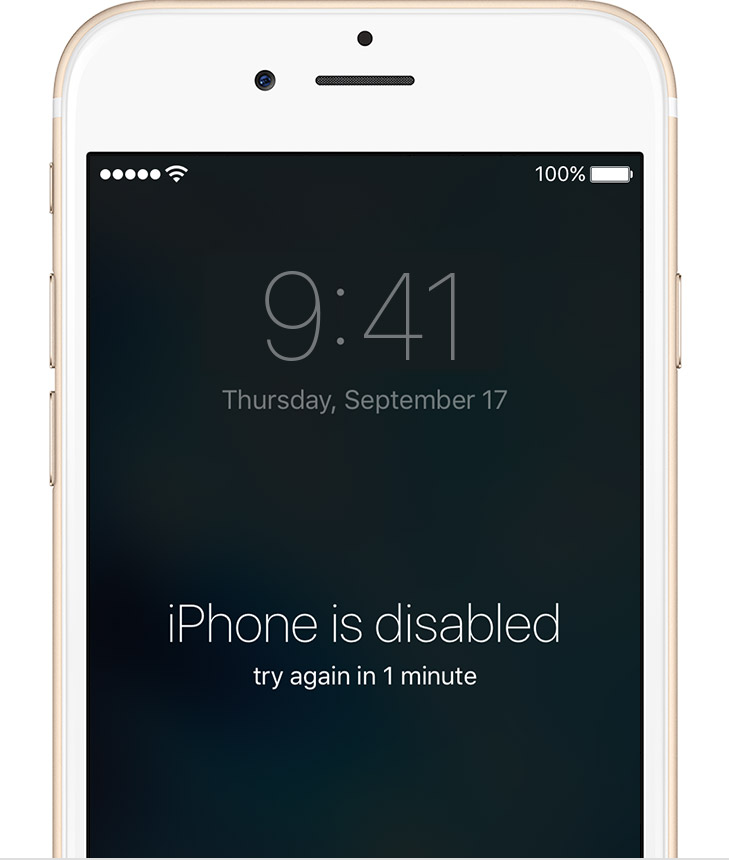
If you enter the wrong passcode in to an iOS device six times in a row, you'll be locked out and a message will say that your device is disabled.

Pick a way to erase your device

Unless you made a backup before you forgot your passcode, there isn't a way to save your device's data. You'll need to erase your device, which deletes all of your data and settings. Choose a way to erase:

Erase your device with iTunes

If you've synced your device with iTunes, you can restore your device.
  1. Connect your device to the computer you synced with.
  2. Open iTunes. If asked for a passcode, try another computer you've synced with, or use recovery mode
  3. Wait for iTunes to sync your device and make a backup. If it doesn't, learn what to do.
  4. Once the sync and backup have finished,click Restore [your device].
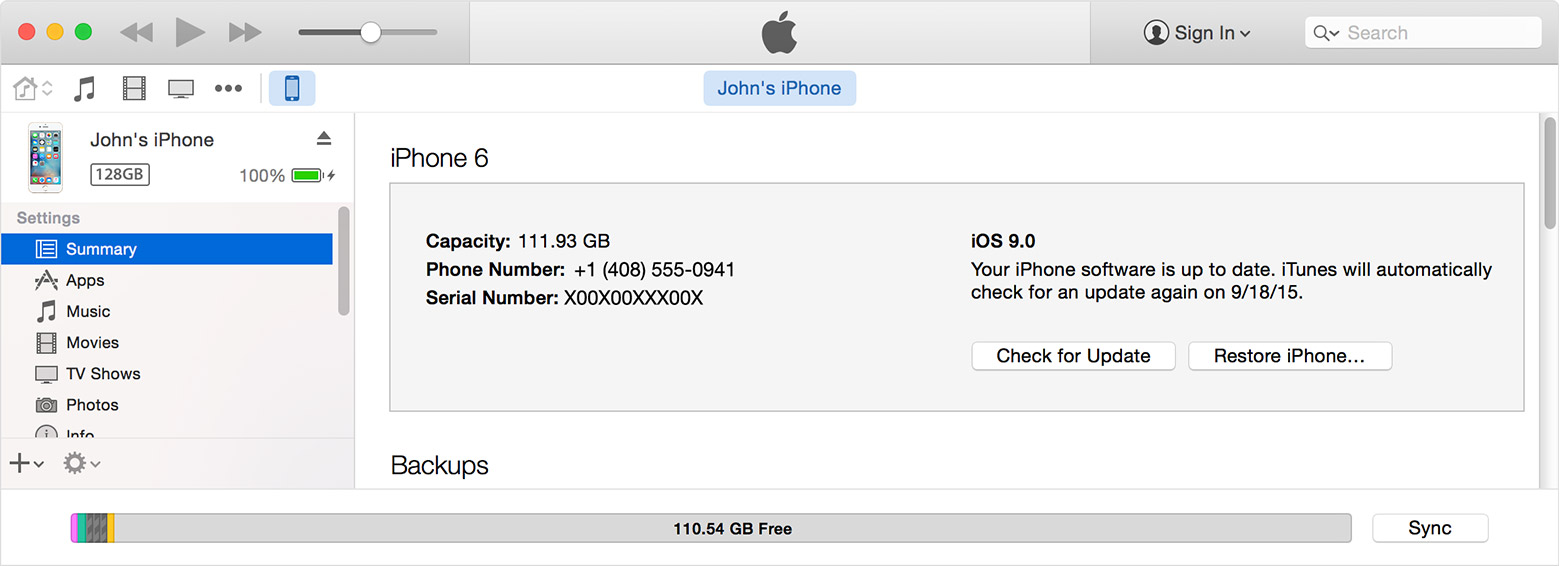
  5. When you reach the Set Up screen while restoring your iOS device, tap Restore from iTunes backup.
  6. Select your device in iTunes. Look at the date and size of each backup and pick the most relevant one.

Erase your device with iCloud

If you set up Find My iPhone on your iOS device or Mac, you can use iCloud to erase and restore it.
  1. From another device, go to icloud.com/find.
  2. If prompted, sign in with your Apple ID.
  3. Click All Devices at the top of your browser window. 
  4. Select the device you want to erase.
  5. Click Erase [device] to erase your device and its passcode.
  6. Now you can either restore from a backup or set up as new.
If your device isn't connected to a Wi-Fi or cellular network, you can't erase it with Find My iPhone.

Erase your device with recovery mode

If you've never synced with iTunes or set up Find My iPhone in iCloud, you'll need to use recovery mode to restore your device. This will erase the device and its passcode.
  1. Connect your iOS device to your computer and open iTunes. If you don't have a computer, borrow one from a friend, or go to an Apple Retail Store or Apple Authorized Service Provider
  2. While your device is connected, force restart it: Press and hold the Sleep/Wake and Home buttons at the same time. Don't let go when you see the Apple logo — keep holding until you see the recovery mode screen.
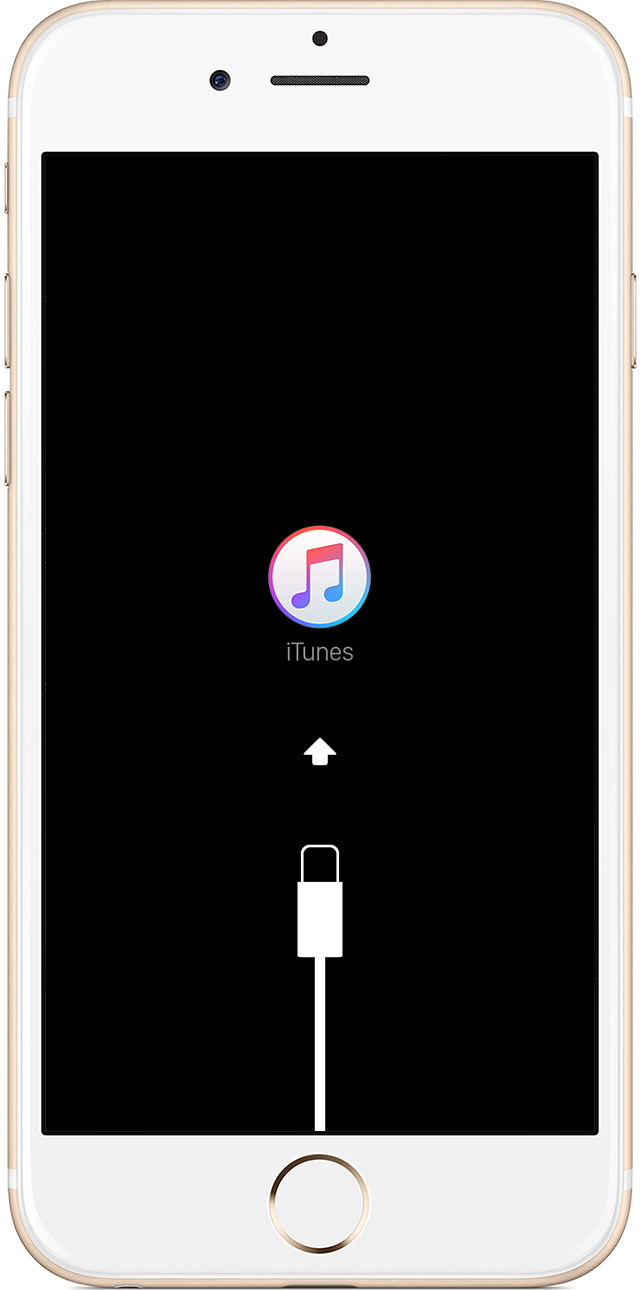
  3. When you see the option to Restore or Update, choose Restore.
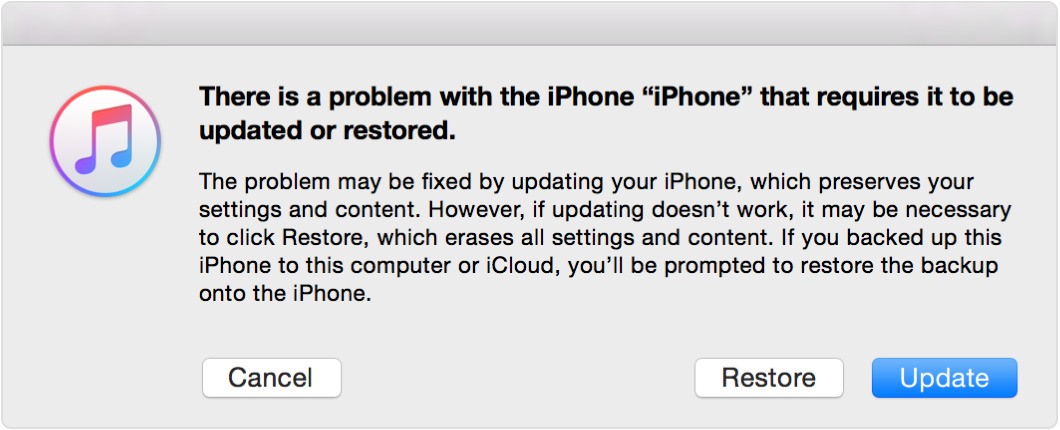
    iTunes will download software for your device. If it takes more than 15 minutes, your device will exit recovery mode and you'll need to repeat steps 2 and 3.
  4. Wait for the process to finish. Then you can set up and use your device.


https://support.apple.com/en-us/HT204306

Unutulan apple kimliği

Apple Kimliğinizi unuttuysanız

Apple Kimliğinizi bulmak için bu adımları uygulayın.

Apple Kimliğiniz, tüm Apple servislerine giriş yapmak için kullandığınız hesabınızdır. Apple Kimliğinizi unuttuysanız veya bir kimliğinizin olup olmadığından emin değilseniz kimliğinizi bulmanın birkaç yolu vardır.

Başka bir e-posta adresi deneme

Çoğu durumda Apple Kimliğiniz e-posta adresinizdir. Öncelikle, Apple Kimliği olarak kullanmış olabileceğiniz tüm önceki e-posta adresleriyle giriş yapmayı deneyin.

Apple Kimliği hesabı sayfanızı kullanma

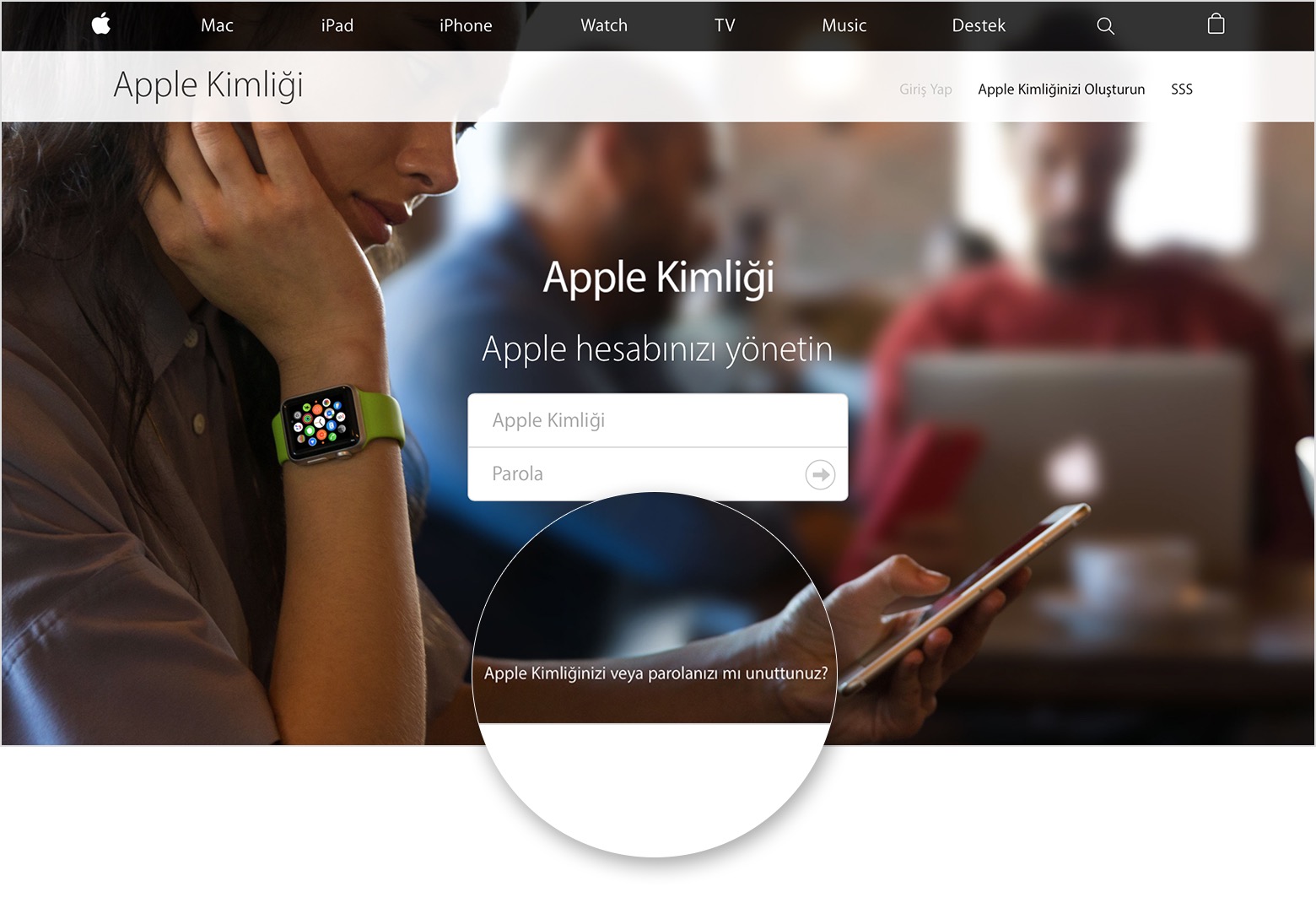
  1. Apple Kimliği hesabı sayfanıza gidin ve Apple Kimliğinizi veya parolanızı mı unuttunuz seçeneğini tıklayın.
  2. Apple Kimliğinizi girmeniz istendiğinde Apple Kimliğini Mi Unuttunuz seçeneğini tıklayın.
  3. Adınızı, soyadınızı girin ve ardından e-posta adresinize veya telefon numaranıza göre aramayı seçin.

Zaten Apple Kimliğinizle giriş yapıp yapmadığınızı kontrol edin

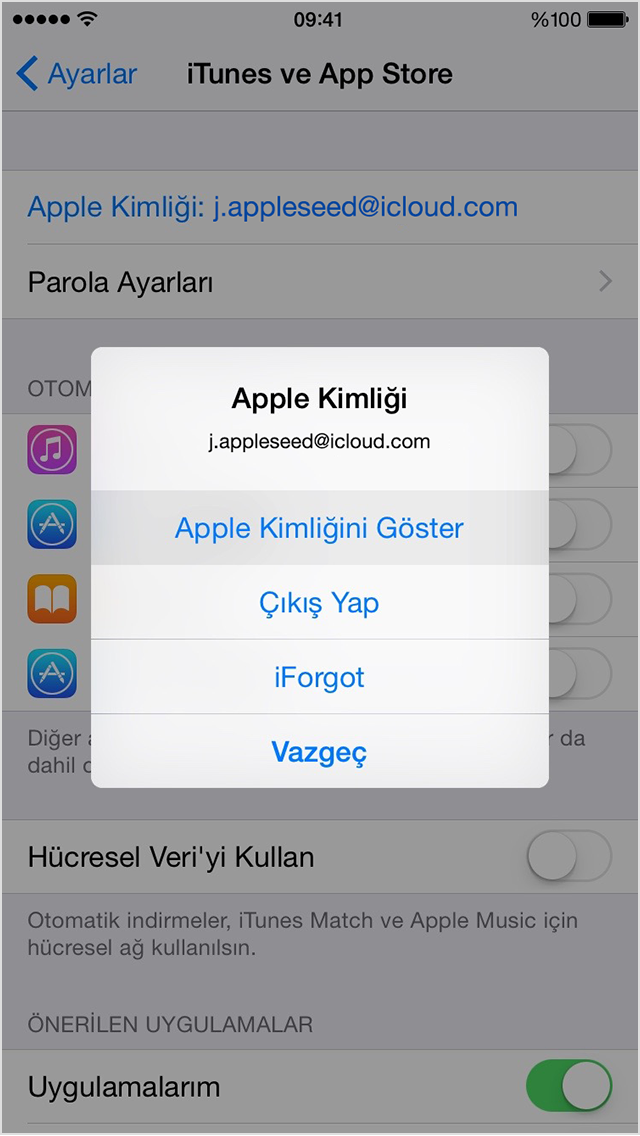
Apple aygıtlarınızdan birinde zaten giriş yapmış olabilirsiniz. Şu servisler için kullandığınız Apple Kimliği'ni görüntüleyin:
     Apple Kimliği
iPhone, iPad veya iPod touch'ınızda:
  • Ayarlar > iTunes ve App Store'a dokunun
  • Ayarlar > iCloud'a dokunun
  • Ayarlar > Mesajlar > Gönder ve Al'a dokunun 
  • Ayarlar > FaceTime'a dokunun 
  • Ayarlar > Mail, Kişiler, Takvimler'e dokunun
Mac'inizde veya PC'nizde:
  • Apple menüsü > Sistem Tercihleri > iCloud'u seçin
  • Mail'ı açın, ardından Mail > Tercihler > Hesaplar'ı seçin
  • Takvim'i açın, ardından Takvim > Tercihler > Hesaplar'ı seçin
  • FaceTime'ı açın, ardından FaceTime > Tercihler > Ayarlar'ı seçin
  • Mesajlar'ı açın, ardından Mesajlar > Tercihler > Hesaplar'ı seçin
Apple Kimliğinizi bulduysanız ancak parolanızı hâlâ anımsamıyorsanız parolanızı sıfırlayın.

iTunes'da daha önce satın aldıklarınızı kontrol etme

iTunes Store'dan daha önce bir şey satın aldıysanız bu satın alma işlemi için hangi hesabın kullanıldığını kontrol edebilirsiniz.
   Apple Kimliği, iTunes
Satın alma yaptığınız tarihten sonra Apple Kimliğiniz değiştiyse Dosya Bilgisi'ndeki ad işinize yaramaz.
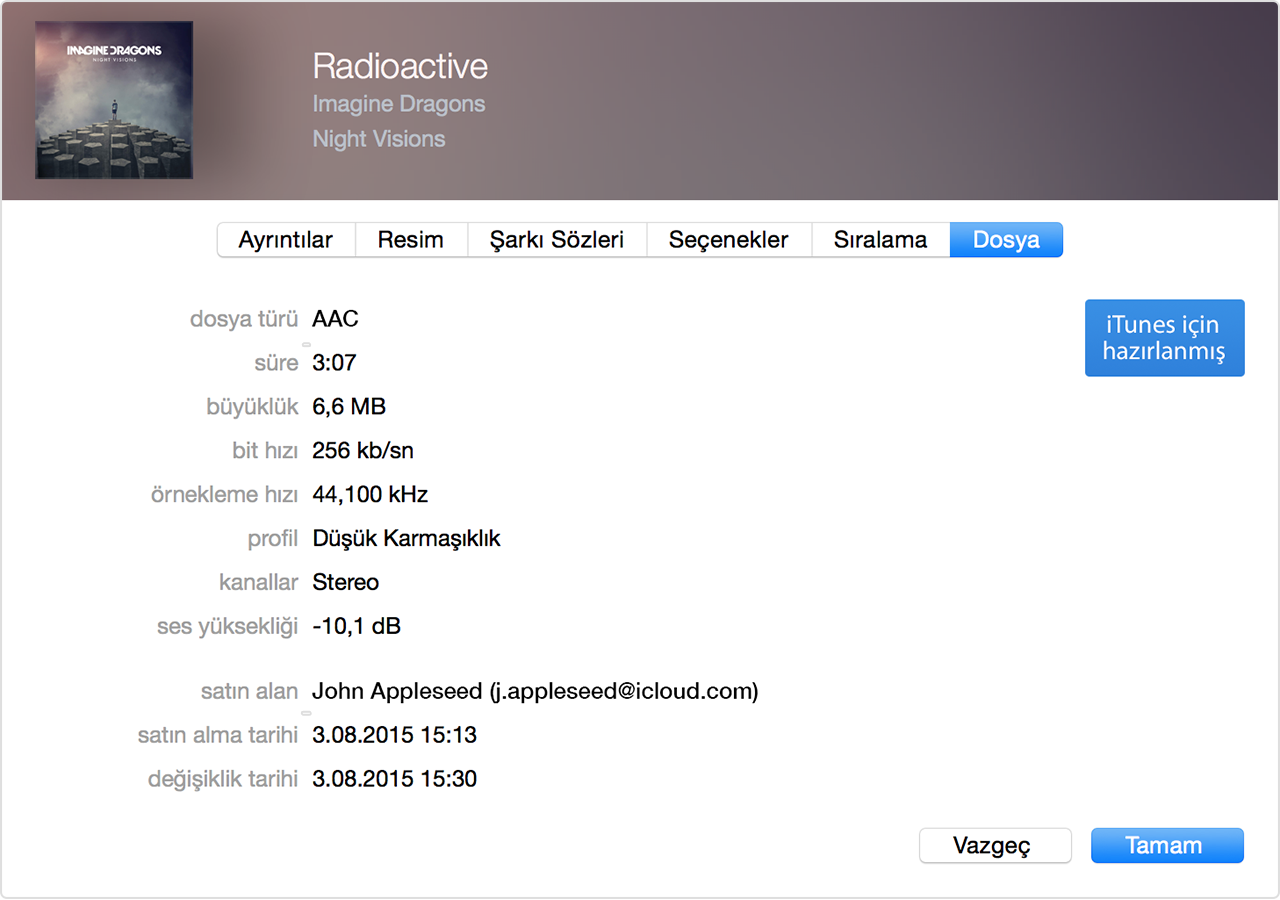
  1. iTunes'u açın.
  2. Satın aldıklarınızdan birini tıklayın. Satın aldıklarınızı Müziklerim'in veya Listeler'in altında bulabilirsiniz.
  3. Dosya> Bilgi Ver'i seçin.
  4. Dosya sekmesini tıklayın.
  5. "Satın alan" bölümünde öğeyi satın almak için kullandığınız Apple Kimliğiniz parantez içinde gösterilir.
Apple Kimliğinizi bulduysanız ancak parolanızı hâlâ anımsamıyorsanız parolanızı sıfırlayın.


https://support.apple.com/tr-tr/HT201354

iCloud: Parolanızı değiştirme

iCloud: Parolanızı değiştirme

iCloud parolanızı değiştirme
Apple Kimliği parolanız iCloud'da saklanan e-posta gibi bilgilerinizin gizliliğini korur. Parolanız ayrıcaiPhone'umu Bul uygulamasını kullanarak aygıtınızın konumunu belirlemenize veya onu uzaktan silmenize imkân tanır. Bilgilerinizi korumak için parolanızı düzenli olarak değiştirmelisiniz.
Parolanızı sıfırlamak için Apple Kimliği web sitesine (appleid.apple.com/tr) gidin ve talimatları izleyin. Ayrıntılı talimatlar için Apple Kimliği: Parolanızı değiştirme başlıklı Apple Destek makalesine bakın.
Apple Kimliğimi nerede kullanabilirim?'i bir sonraki kullanışınızda, sizden yeni Apple Kimliği parolanızla giriş yapmanız istenecektir. iCloud posta hesabınızı iOS aygıtında, Mac'te veya iCloud.com'da Mail dışında bir e-posta uygulamasıyla kullanırsanız, parolanızı söz konusu uygulamada da değiştirin.

https://support.apple.com/kb/PH2617?locale=tr_TR&viewlocale=tr_TR